

Give access to whoever sets you up
What you'll learn
- How to give an implementer access without lending them your account
- Exactly what that person can and cannot touch
- How to cut the access off, and how it ends on its own
If you hired someone to leave your account configured and running — us, an agency, or a technician you trust — don’t lend them your own account. There is a separate kind of access built for exactly this: it can configure everything, it cannot touch your money or your account, and it switches itself off.
Why not just share your password
Your own account is the only one that can change your subscription, add or remove your team, and change the email your account is recovered with. Handing it over hands over all of that too — with no end date, and no way to take it back other than changing your password and hoping.
The access below is the opposite: it opens exactly what someone needs to set your Parlario up, and closes on a date you pick.
How to grant it
Go to Settings → Team
Scroll past your team members to the card called “Implementation and support access.”
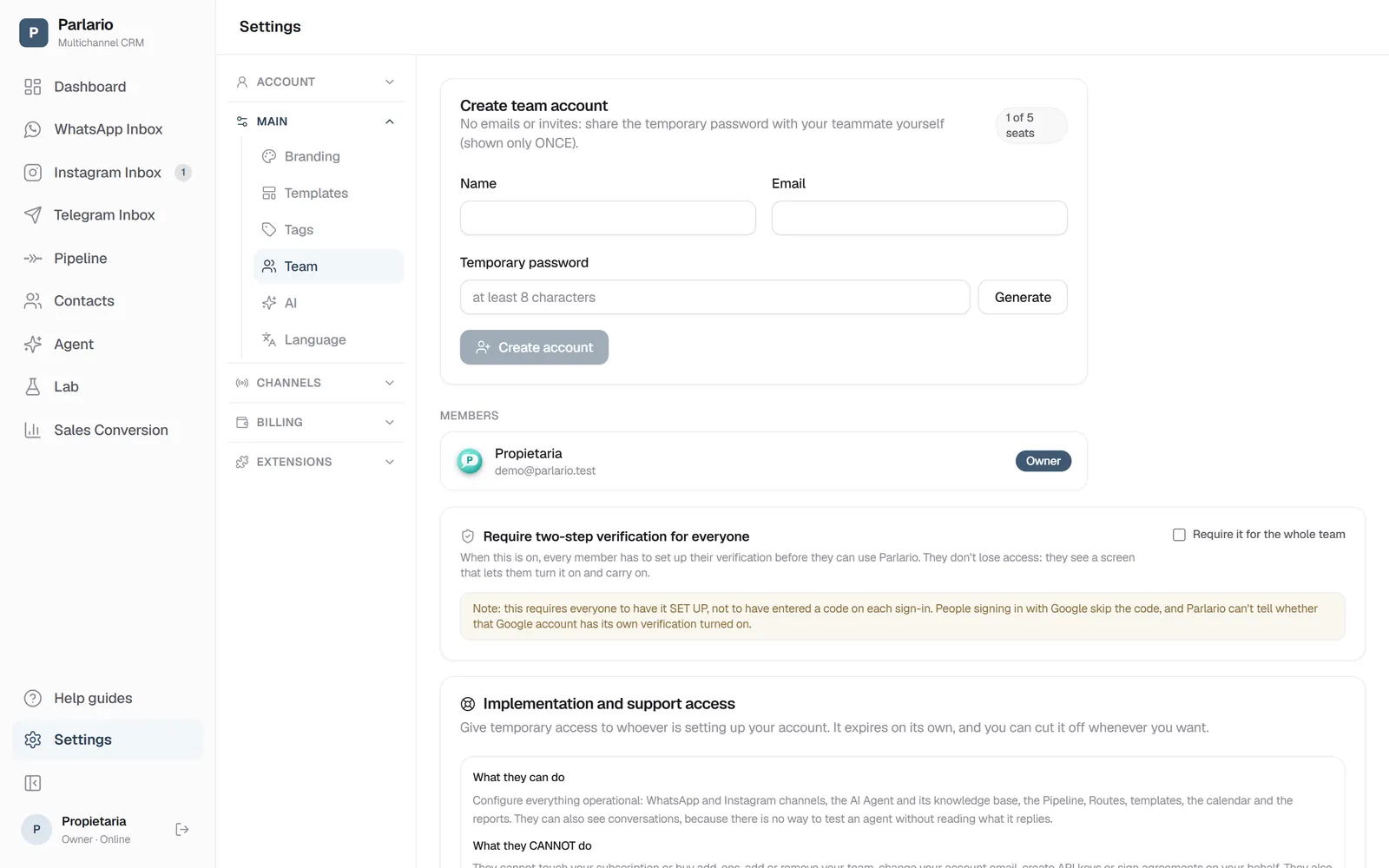
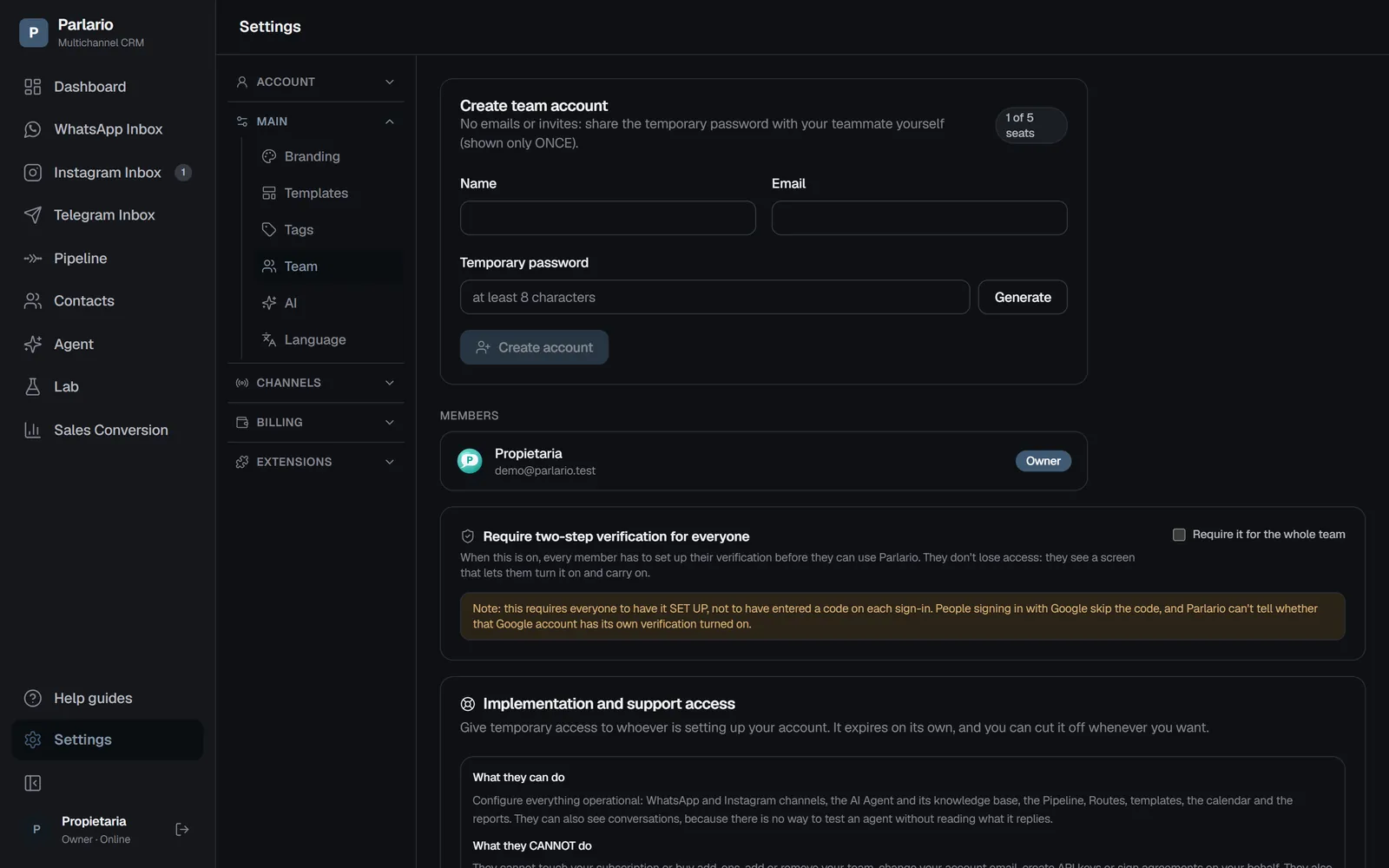
Settings → Team: implementation access is further down the page Enter their name and email
Use the real email of the person or agency doing the work — it’s the account they will log in with.
Choose how long it lasts
7, 14 or 30 days. Pick roughly how long the work should take; if it runs longer you can always grant a fresh one.
Click “Grant access” and pass on the password
A temporary password appears once. Copy it and send it yourself through a secure channel — no email is sent automatically, the same as when you create a team account.
What they can and cannot do
This is the part worth reading before you hand over the key.
They can configure everything operational: your WhatsApp and Instagram channels, the AI Agent and its knowledge base, the Pipeline, Routes, message templates, the calendar and the reports. They can also read your conversations — there is no way to check that your agent answers customers properly without seeing what it actually replies.
They cannot touch your subscription or buy add-ons, add or remove people from your team, change your account email, create API keys, or sign agreements on your behalf. They also cannot pass this same access on to anyone else.
Put simply: they can configure your Parlario, they cannot take it over. And because they cannot grant access to a third person, revoking is always final — there is no second door left open behind the first one.
It ends by itself
When the days you chose run out, the access stops working. You do not have to remember anything, and nobody has to tell us to switch it off — if the person is logged in at that moment, their next click takes them back to the login screen.
If you want it gone sooner, the bin icon next to their name revokes it on the spot, with a confirmation first. That deletes the account outright, so any session they have open dies with it.
An expired access does not vanish from the list: it stays there marked “Expired”, so you can see with your own eyes that it really did switch off. Remove it whenever you like, or grant a new one if the project needs more time.
It does not cost you a seat
Your plan includes a number of team seats — 2 on Essential, 5 on Business, 10 on Advanced. This access sits outside that count. If you are on Business, you still have all 5 seats for your own people while the implementation is going on.
Good habits
- Grant it when the work starts, not “just in case” ahead of time.
- Pick the shortest duration that fits the job. You can always grant another one.
- Revoke it as soon as the work is signed off, even if there are days left.
- Send the temporary password through something private — not a public group chat.
- Only one of these can exist at a time, on purpose: you should always be able to glance at the screen and know exactly who holds a key to your account.
Recap
- Settings → Team, card “Implementation and support access”: name, email, 7 / 14 / 30 days
- The temporary password is shown once — share it yourself, securely
- They configure everything and see conversations; they never touch billing, your team, your account email, or API keys
- It expires on its own, and the bin icon revokes it immediately — open sessions included
- It does not use up one of your plan’s seats
To unmark the lesson, select the button again.
Questions? Visit our support portal: support.parlario.co