

Several WhatsApp numbers and Instagram accounts
What you'll learn
- How many numbers and accounts each plan includes, and how WhatsApp, Instagram and Telegram share the allowance
- How to connect, name and disconnect each number
- How the Inbox works with several numbers, and why every reply goes out from the conversation's number
- How to limit each person on your team to their numbers
- What happens with Routes, templates, stores, Meta Ads, exports and WhatsApp usage
You can connect more than one WhatsApp number and more than one Instagram account to the same Parlario account: sales and support on separate lines, one line per location, or one per brand. Everything is handled from one place, with the same contacts, the same Pipeline and the same reports — instead of opening a separate Parlario account for each number.
If you have a single number, nothing changes. Everything this lesson covers only appears once you connect the second one: with one, every screen is exactly what it has always been.
How many you can connect on your plan
| Plan | WhatsApp numbers, Instagram accounts and Telegram bots |
|---|---|
| Essential | 1 WhatsApp number, 1 Instagram account and 1 Telegram bot — one per channel |
| Business | 3 in total, across WhatsApp, Instagram and Telegram |
| Advanced | 5 in total, across WhatsApp, Instagram and Telegram |
Connect another number or account
Go to Settings → Channels → WhatsApp (or Instagram)
That's where you see the list of Connected numbers (Connected accounts on Instagram) and how much of your allowance you've used. Connecting, renaming and disconnecting is done by the owner, or by whoever has implementation access.
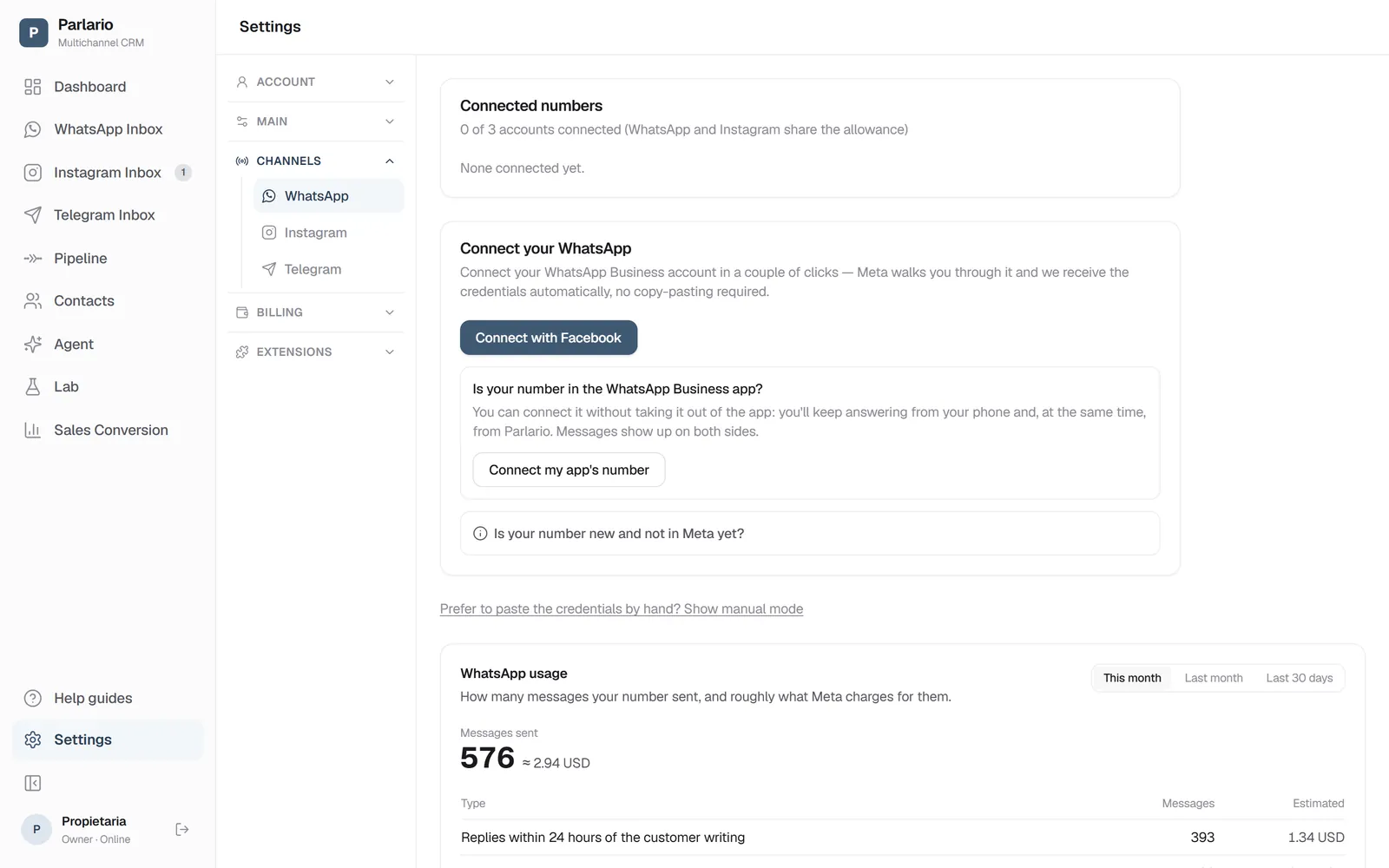
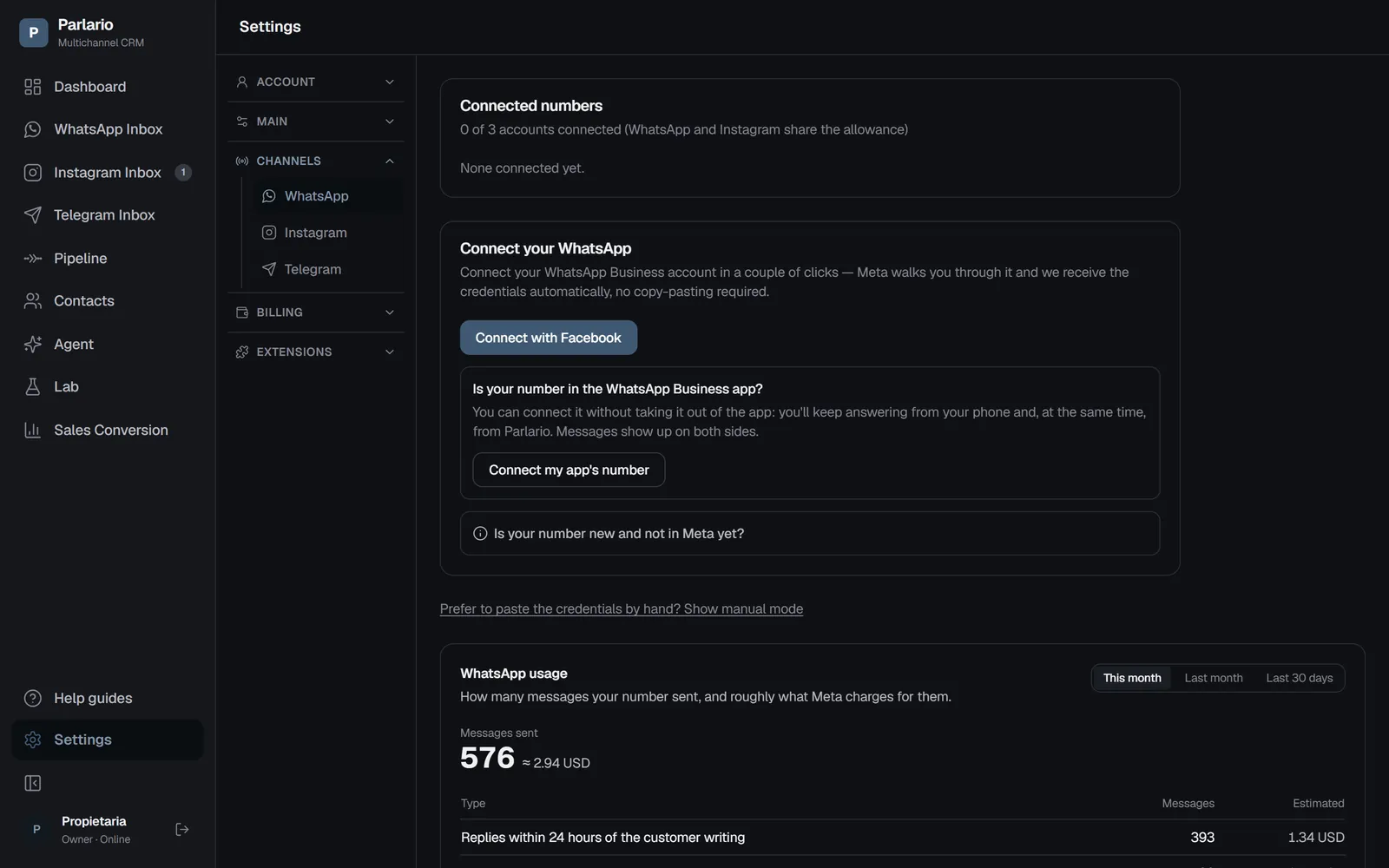
Settings → Channels → WhatsApp, with the Connect with Facebook button Tap "Connect another number"
On Instagram it says "Connect another account". It's exactly the same connection as in the previous lessons: in Meta's window, pick the new number (or account).
If you pick a WhatsApp Business account that already has several numbers, Parlario connects the first one you haven't connected yet. If you want a specific one, use "show manual mode" and paste that number's Phone Number ID.
Give it a name
Tap "Rename" and type what your team calls it: Sales, Support, Bogotá (up to 40 characters). That name is what your team will see in the Inbox, in access by account and in Routes; the phone number becomes secondary. It's worth doing right after you connect: one "No label" next to another tells nobody anything.
If you've reached your plan's allowance
The button stops adding numbers: it's there to reconnect one you already have, and the screen tells you why. To connect another, disconnect one or change plan.
A WhatsApp number —or Instagram account— can only be connected to one Parlario account at a time. If it's already connected elsewhere, Parlario tells you and doesn't connect it.
Disconnecting a number
Each number has its own "Disconnect" button, which asks for confirmation ("Yes, disconnect") before doing anything. When you disconnect:
- No contacts or conversations are lost: you lose the channel, not the history.
- Routes tied to that number are paused, not deleted (see "Routes per number" below).
- On Essential, to change numbers, disconnect the one you have first and then connect the new one.
The Inbox with several numbers
- One conversation per number. If the same customer writes to two of your numbers, you see two conversations, one per number, and they don't mix. It's still one contact, with one card in the Pipeline.
- Filter by number. Above the list you'll see "All accounts · Sales · Support", each with its own unread count. It combines with the usual filters (Unread, search). The WhatsApp Inbox filters between your numbers, and the Instagram Inbox between your Instagram accounts.
- Each row shows which number the conversation came in on.
- "Replying from Sales" appears above the text box, so there's never any doubt about where your message goes out from.
Everything goes out from the conversation's number
Your replies, the AI Agent's, templates, reminders and store notifications always go out from the number the customer wrote to. There's no selector to reply from another one: a message from a number the customer doesn't know would reach them as if from a stranger.
That's why, if Parlario ever doesn't know which number a chat came in on —it happens with conversations from a number you've since disconnected, when you still have several—, it won't let you send, and the Inbox tells you before you type. It sorts itself out as soon as the customer writes again.
Your AI Agent
One agent handles all your numbers, with the same setup and the same knowledge base. In each conversation it replies with the history of that conversation: what the customer discussed with Sales doesn't mix with what they discussed with Support. The Lab works the same as always.
Who sees each number: your team's access
If you have a team for each line, you can make each person see only the numbers they work on.
Go to Settings → Team → Access by account
The "Access by account" card appears when you have two or more accounts connected and at least one member on your team. Only the owner sees and uses it.
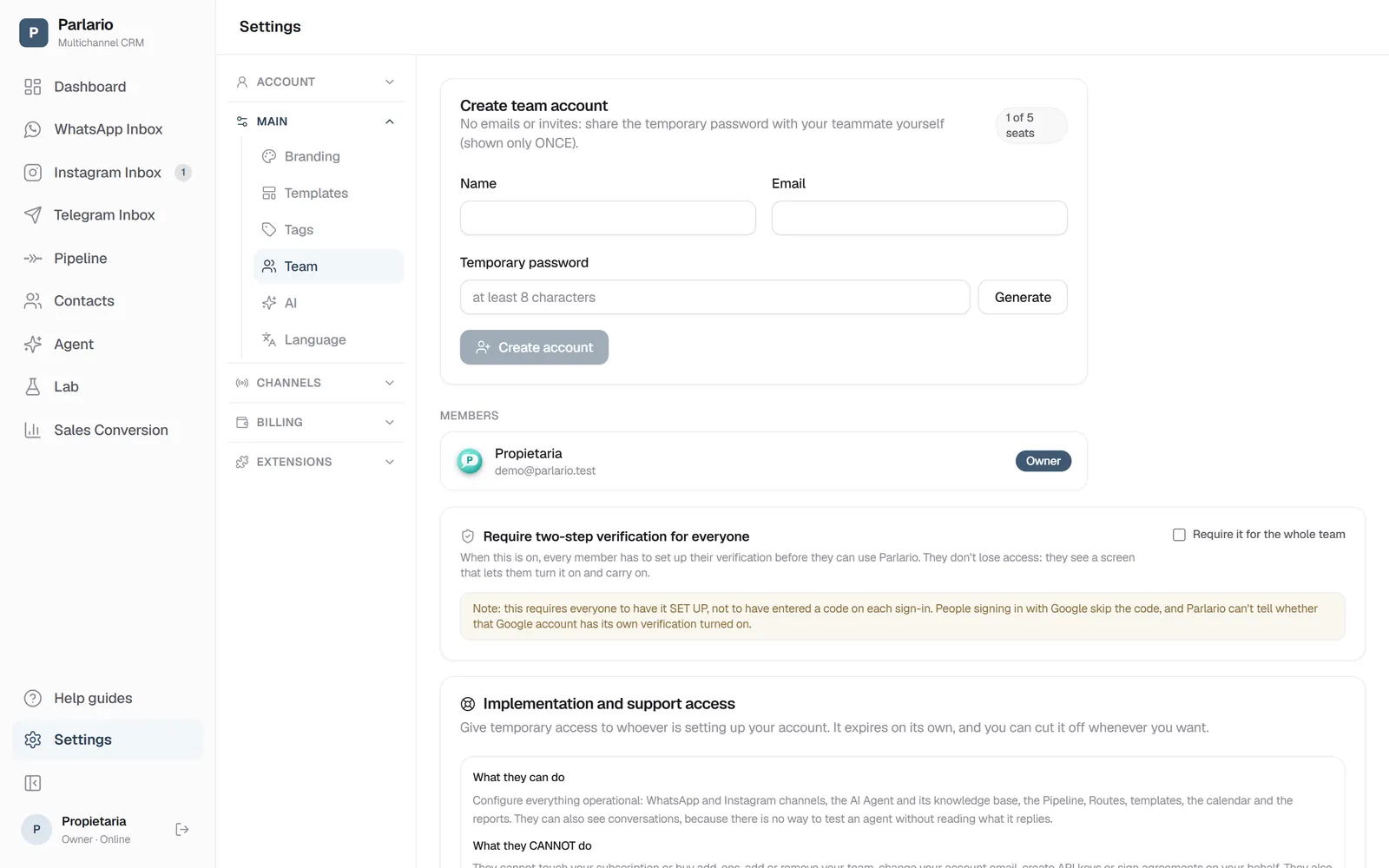
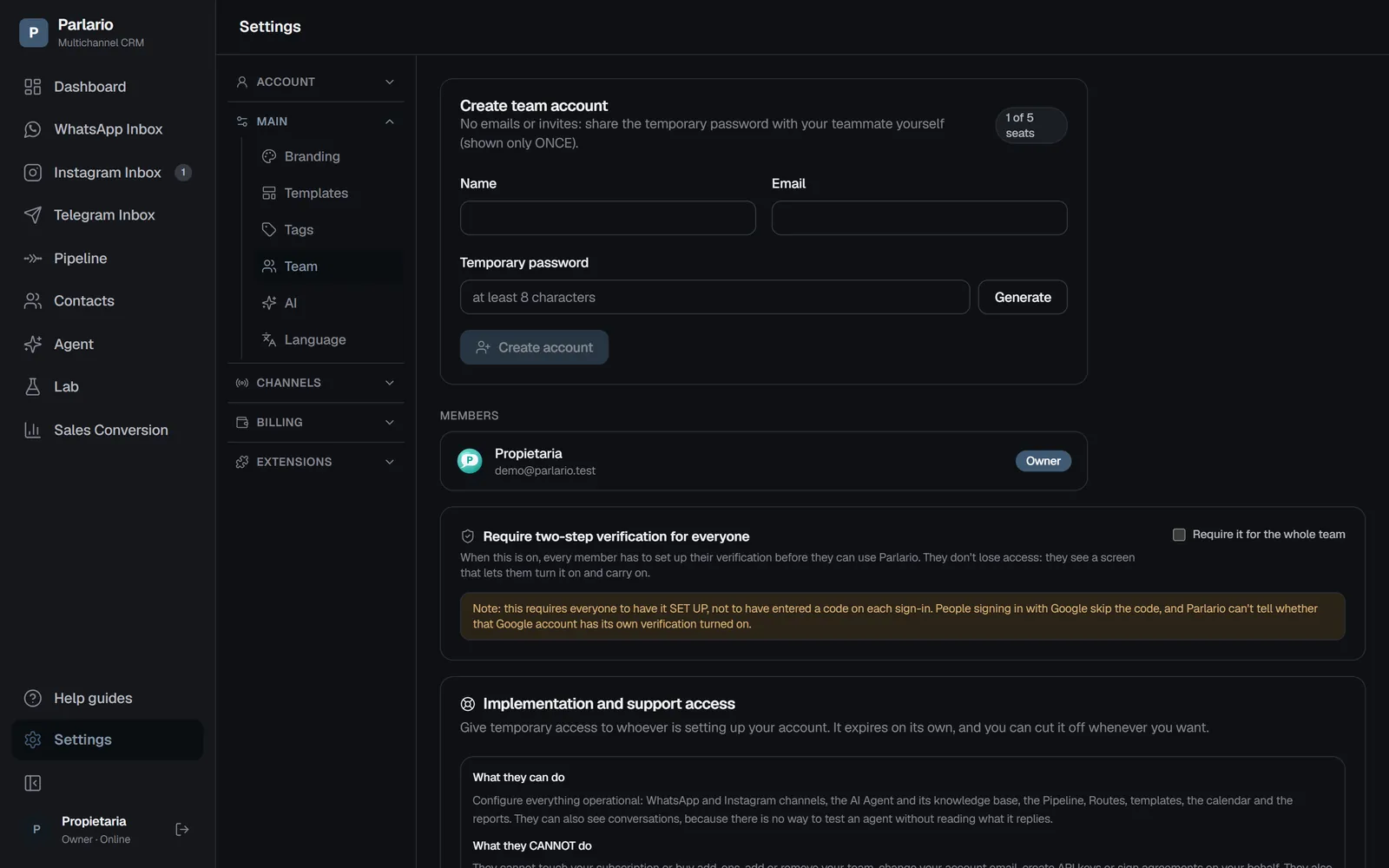
Settings → Team: access by account is further down the page Tick each person's numbers
Each member has a row with all your numbers and accounts (each marked WA or IG). Tap the ones that belong to them: it saves instantly, there's no save button. On the right you see the result: "Sees all", or how many they have.
To lift the restriction, untick them all
With none ticked, the person goes back to seeing all. That's the default: if you don't restrict anyone, everyone sees everything, as always.
What a restricted member sees:
- Inbox: only the conversations on their numbers. Everyone else's don't exist for them: not in the list, not in the counters, not by opening a direct link.
- Contacts and Pipeline: only the contacts who wrote to one of their numbers. Contacts with no conversation yet —for example, ones added by hand— are visible to the whole team.
- Dashboard: the metrics for their numbers. They don't see the Monthly Active Contacts counter: it's billed for the whole account, so a per-number slice wouldn't be the figure you pay for.
The owner and implementation access always see every number. And a customer who wrote to two of your numbers is visible to both teams —it's one person—, but each team can only read and reply to the conversation on its own number.
Routes per number
- In each Route's editor, the "Number" selector decides where it starts: "All numbers" (what every Route did before there could be more than one) or a specific one. Useful so Sales gets a menu and Support doesn't.
- "On the contact's first message" counts per number: Support's welcome also reaches someone who had already written to Sales.
- One Route at a time per conversation: the same customer can be inside a Route on each number, and a message to one number never advances the Route they're halfway through on the other.
- Keywords: two Routes with the same keyword only clash if they can start on the same number. Sales and Support can each use "menu".
- If you disconnect a number, the Routes tied to it are paused, not deleted. To use them again, pick another number in the selector and activate them.
Templates and reminders
WhatsApp templates live in your Meta WhatsApp Business account, not in each number. If all your numbers are in the same account —the usual case when you connect with Facebook—, they share the same templates and nothing changes.
If your numbers are in different WhatsApp Business accounts, each template can only be sent by the numbers in its account (even within the same Meta portfolio: a portfolio groups several accounts). Settings → Templates shows which number each template belongs to, and when you create one you choose Which number will use it?: one number, or All my numbers, which creates a copy in each account.
Automatic reminders go out through the contact's most recent conversation with a number in the template's account; if they never talked to a number in that account, they aren't sent.
Store notifications: Shopify and WooCommerce
Order, shipping and abandoned-cart notifications go out from the WhatsApp number the customer last talked to you on. There's nothing to configure, and with a single number it's exactly what it always was. As before, they only reach customers who already have a WhatsApp conversation with you, and, like reminders, they go out from a number in the chosen template's account.
Meta Ads and ROAS
- The Meta Ads connection (Settings → Meta Ads) is one per Parlario account: one Pixel/Dataset and one Facebook Page, for all your numbers.
- WhatsApp sales are reported with the customer's phone and that Page, whichever number closed the sale.
- Instagram sales are reported with the Instagram account of that conversation.
- Which ad each contact came from is recorded the same way on all your numbers.
One limit to keep in mind: if you run click-to-WhatsApp ads from two different Facebook Pages (one per brand), every sale is reported with the Page you set up in Meta Ads.
Export contacts by number
In Contacts → Export CSV there's a "Number" selector: leave "All numbers" or pick one, and you export only the contacts who have a conversation on that number. It combines with the usual search and dates. A customer who wrote to two numbers shows up in each number's export. As always, exporting is for the owner, on Business and Advanced.
WhatsApp usage by number
In Settings → Channels → WhatsApp, the usage panel adds a "By number" section showing how many messages each one sent in the chosen period. It appears when two or more numbers sent messages in that period.
The cost estimate and the spending cap cover the whole account: they add up all your numbers, because Meta bills your WhatsApp Business account, not each number separately. If the cap pauses the AI Agent, it pauses it on every number.
If you move to a plan with fewer numbers
You have 7 days to choose
If you end up with more accounts than your new plan allows, a notice appears at the top of the whole app with a 7-day countdown to choose which numbers to keep. The same notice is in Settings → Channels.
Disconnect the ones you won't use
From Settings → Channels → WhatsApp or Instagram, with each one's "Disconnect" button. Once you're back within the allowance, the notice goes away.
If you don't choose, the oldest ones stay
When the time is up, Parlario keeps the ones you connected first —the first one is usually the main one— and disconnects the newest. On Essential it applies per channel: your oldest WhatsApp number and your oldest Instagram account stay.
Either way, no contacts or conversations are lost: you lose the channel, not the history. Routes tied to a disconnected number are paused.
Recap
- Essential: 1 WhatsApp, 1 Instagram and 1 Telegram bot. Business: 3 in total. Advanced: 5 in total — WhatsApp, Instagram and Telegram share the allowance
- A customer who writes to two numbers has two conversations, but is one contact
- Everything goes out from the number the customer wrote to: replies, the Agent, templates, reminders and store notifications
- If you don't restrict anyone in Access by account, your whole team sees every number
- Disconnecting a number doesn't delete contacts or conversations, and its Routes are paused
To unmark the lesson, select the button again.
Questions? Visit our support portal: support.parlario.co