

Use Parlario on your phone
What you'll learn
- How to add Parlario to your home screen on Android and iPhone
- How the Inbox, the Pipeline and Settings work on a small screen
- What still needs a computer
Parlario works on your phone and tablet too, right in the browser — no download from an app store. The most common use: answering customers from the Inbox when you're away from your computer.
Open Parlario on your phone
On your phone's browser, go to app.parlario.co and sign in with your usual email and password (or with Google).
Add it to your home screen
So it opens like an app — with its own icon, full screen and without the browser bar:
- Android (Chrome): tap ☰ at the top left and then Install the app, and confirm with Install. If you don't see it, use Chrome's menu ⋮ → Add to Home screen (or Install app).
- iPhone or iPad (Safari): tap the Share button (the square with the arrow pointing up), choose Add to Home Screen and tap Add. In Parlario, ☰ → Install the app shows you these same steps.
From then on, open Parlario from its icon. Once it's installed, the menu no longer shows "Install the app".
Find your way around: the menu
The menu lives in the top bar: tap ☰ to open it, and tap any option (or outside the menu) to close it. The number on ☰ is your unread messages.
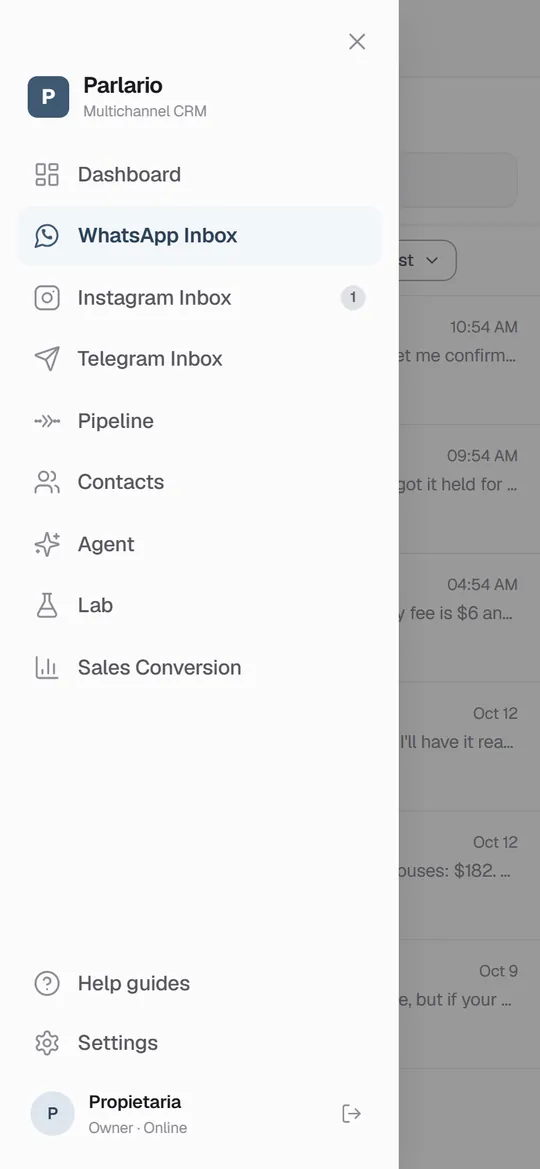
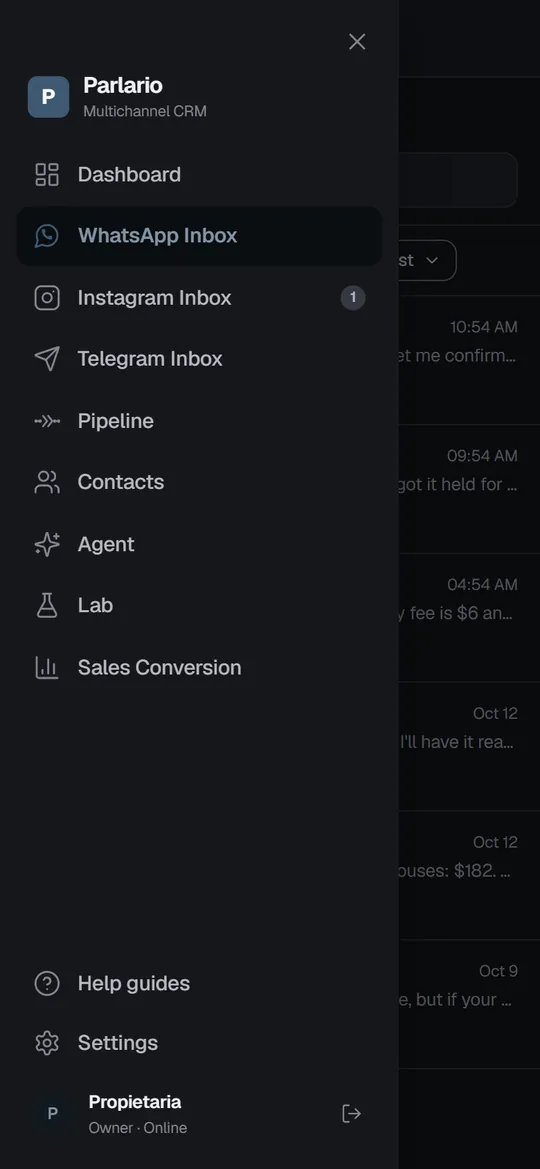
On the phone, the menu opens from the ☰ button Answer from the Inbox
The Inbox shows one thing at a time. Tap a conversation and it opens full screen; to go back to the list, tap ← or use your phone's "back" gesture. The button in the top right corner opens the contact's details: their pipeline stage, notes and the AI switch for that conversation.
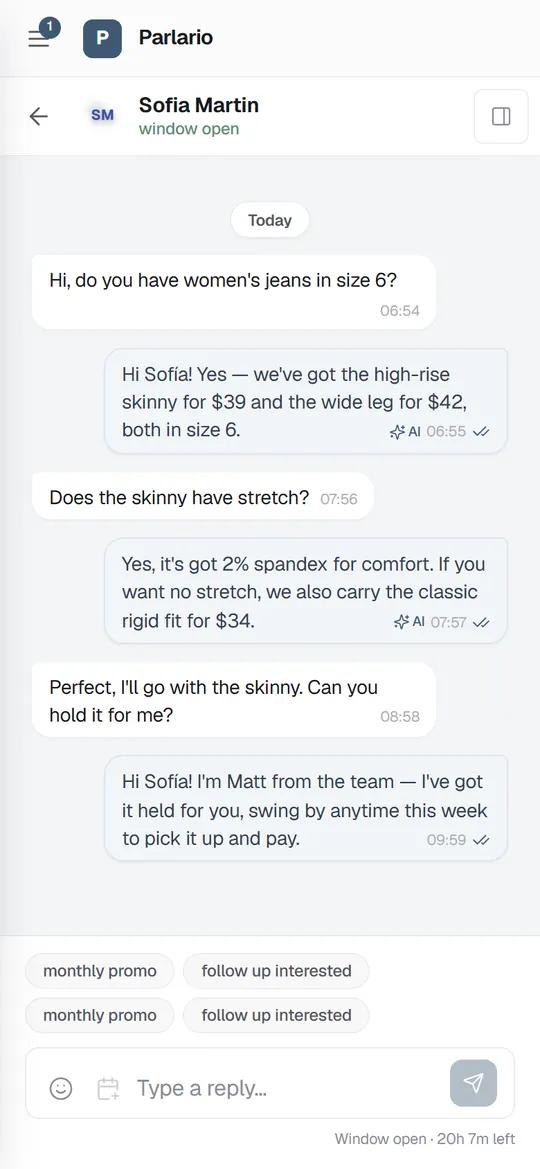
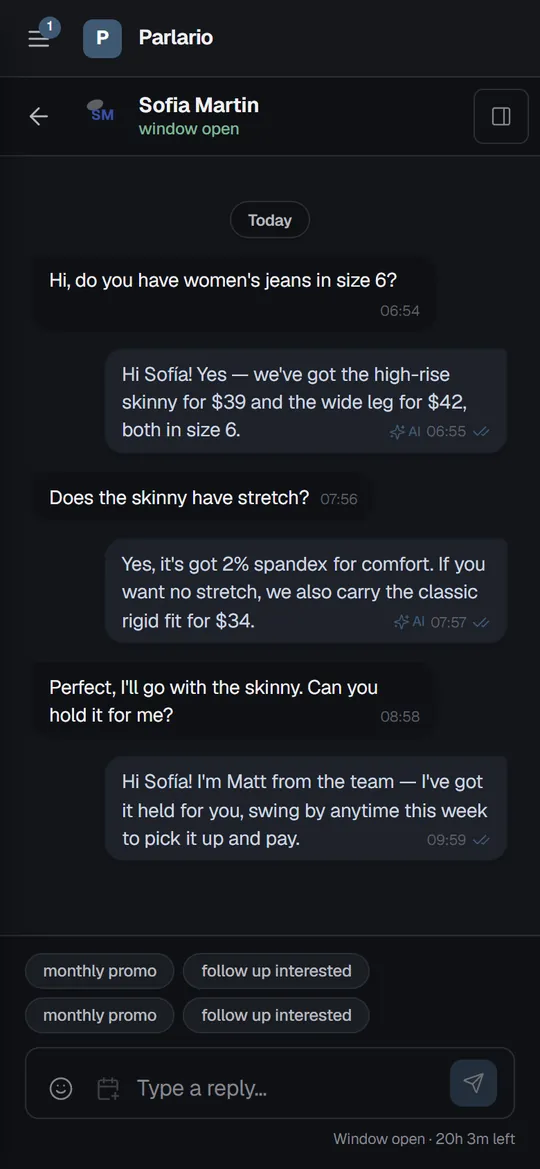
A conversation on the phone, with the AI Agent's replies marked Move leads in the Pipeline
The Pipeline slides sideways, one stage at a time. To move a contact to another stage, tap ⇄ on their card and pick the stage. You can also press and hold the card for a moment and drag it.
Change settings
In Settings, the list of sections is a dropdown at the top: pick the section you want to open.
Some things need a computer
What needs a big screen shows a notice on the phone instead of a cramped screen: "Available on a computer only", with Copy link to open that exact screen later on your computer. Today that's the Routes visual canvas — on the phone you can still review and edit any Route in the List view.
Get alerts with Parlario closed
Parlario can alert you on your phone when a customer needs a person, even when it's closed. See the next lesson: Notifications and inactivity sign-out.
Recap
- Parlario runs in your phone's browser — install it from ☰ → Install the app (Android) or Share → Add to Home Screen (iPhone)
- In the Inbox, tap a conversation to open it and ← (or the back gesture) to return
- In the Pipeline, ⇄ moves a contact to another stage
- On a tablet, Parlario looks like it does on a computer
To unmark the lesson, select the button again.
Questions? Visit our support portal: support.parlario.co