

The Inbox
What you'll learn
- What you'll see in the Inbox once WhatsApp (and optionally Instagram) is connected
- How to pause the agent on a specific conversation
- How to see who a conversation is assigned to and transfer it to a teammate
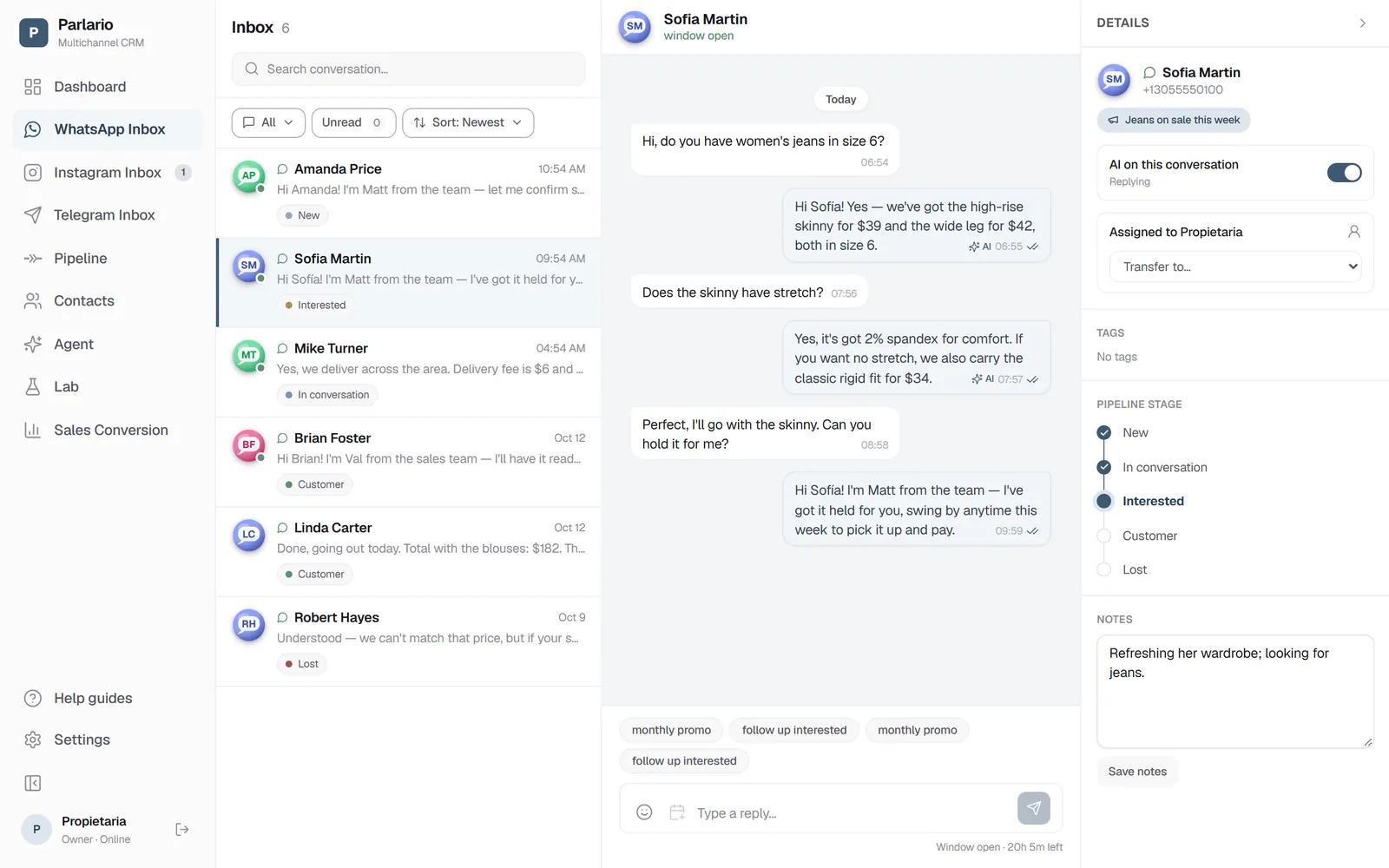
With WhatsApp connected and your agent ready, the Inbox is where you'll spend most of your time.
- Every new conversation appears in real time, without reloading the page.
- Filter between All and Unread, or search by name or phone number.
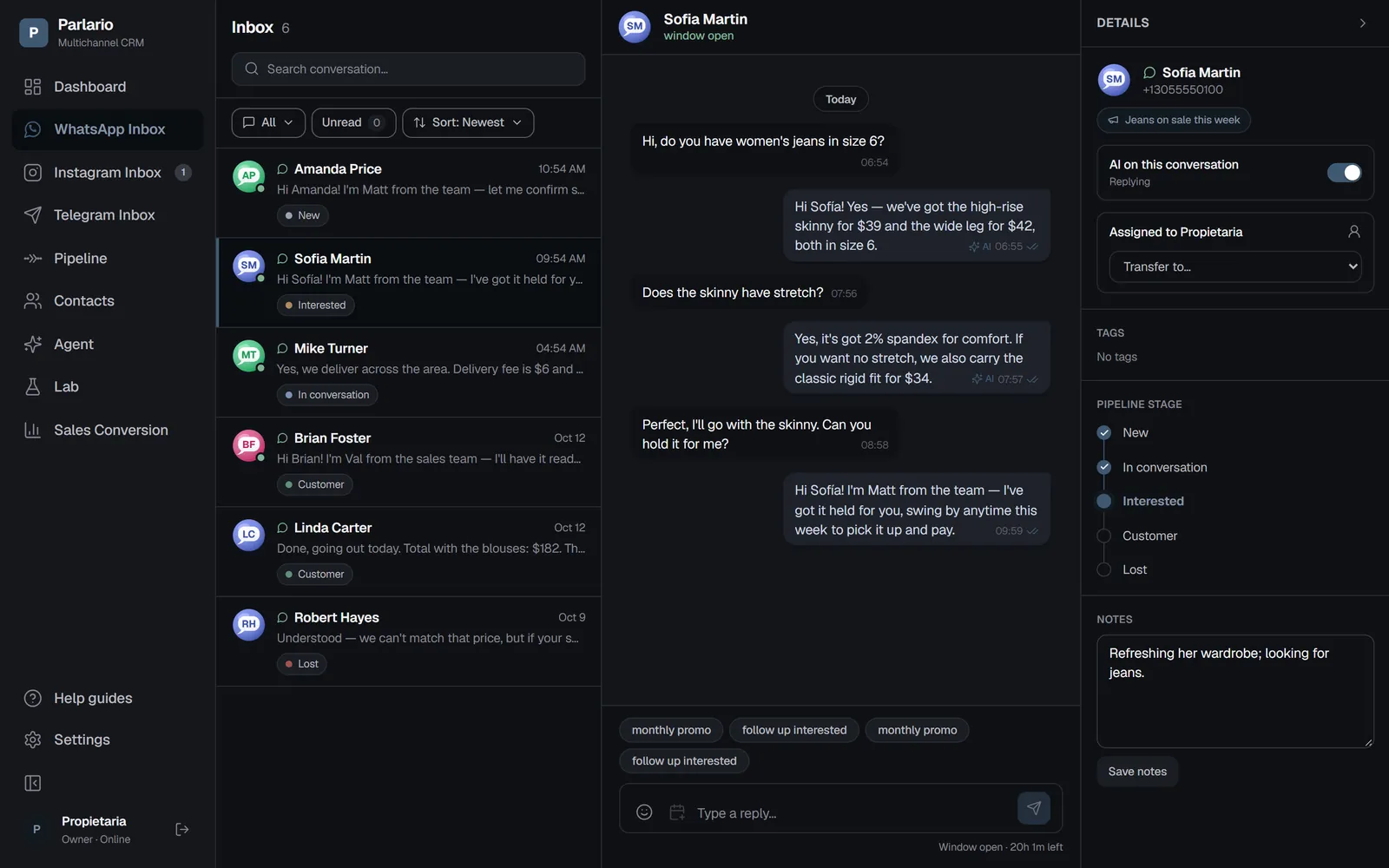
- Opening a conversation shows the full thread and a Details panel with the contact's Pipeline stage, who it's assigned to, their tags, and an internal Notes field.
- Tags are the coloured chips under the name: you add and remove them with a click, and they're how you find that person again later from Contacts. Anyone on your team can tag; creating them is the owner's job, in Settings → Tags.
- When the agent hands a conversation off to human attention (because the customer asked for it, the agent decided to, or there was an AI provider error), you'll see a clear notice in the thread.
The Details panel also shows "Assigned to [name]" once a teammate has taken the conversation, or "Unassigned — 100% AI" if no one has yet. You can transfer the conversation to another teammate at any time from the "Transfer to…" dropdown, without waiting for someone to reply first. Transferring automatically pauses the AI (the same mechanism as the "AI on this conversation" switch), and the thread notice will show "Transferred to [name]" — use the "Reactivate AI" button whenever you want it responding on its own again.
If you connected Instagram (see the "Connect your Instagram account" lesson), you'll see two tabs at the top of the Inbox: WhatsApp Inbox and Instagram Inbox. They work exactly the same way — same AI Agent, same Pipeline, same Notes — they just split messages by channel so it's easy to tell where each conversation is coming from. Each tab shows its own unread count.
If you turned on Telegram and connected your bot (see the "Connect your Telegram" lesson), you'll also get a Telegram Inbox, likewise separate and with its own unread count. There's no 24-hour window and no templates there: you can always reply. Photos, voice notes (with their transcript), videos and documents your customers send show right in the conversation. Tags and notes work the same as in the other inboxes, and if you use Routes, their menus and the buttons your customers tap show up here too.
The content of the messages your agent or your team send is your responsibility as a business — you configure the agent and are the one who must supervise its behavior.
If your number is also on the WhatsApp Business app
What you reply from the app on your phone shows up in the thread with a “Phone” label, and the AI steps away from that conversation: the Details panel shows “Human attention” with the reason, and the AI comes back on its own after a while with no replies from the phone. See Connect your WhatsApp Business.
With several numbers
If you connected more than one WhatsApp number (or more than one Instagram account), the Inbox adds three things:
- A filter by number above the list —"All accounts · Sales · Support"—, each with its own unread count.
- The number's name on each conversation, so you know where it came in.
- "Replying from Sales" above the text box.
A customer who writes to two of your numbers has two conversations, one per number, and is still one contact. Whatever you reply —you or the AI Agent— always goes out from the number they wrote to. The full details are in Several numbers and accounts.
Recap
- If you connected Instagram, you'll see two separate tabs — WhatsApp Inbox and Instagram Inbox — each with its own unread count
- The "AI on this conversation" switch lets you pause the agent per conversation, without touching its general settings
- The Details panel shows which teammate a conversation is assigned to, and a "Transfer to…" dropdown lets you hand it to someone else — the AI pauses automatically when you transfer
- If the 24-hour window is closed, Parlario offers to send an approved template instead
To unmark the lesson, select the button again.
Questions? Visit our support portal: support.parlario.co