

Connect your Shopify store
What you'll learn
- The event isn't configured, or its "Send this message" toggle is off
- The webhook for that event doesn't exist in your store admin, points to a different URL, or was deleted
- The order's phone number doesn't match any of your contacts. Parlario messages people who are already your contacts on WhatsApp — it doesn't create a contact out of a Shopify order
- That contact has no WhatsApp conversation yet
- The chosen template was deleted, or Meta withdrew its approval
- The order doesn't carry the piece of data you mapped — a shipment with no tracking number, for instance
Connect your Shopify store and every customer hears about their order where they already talk to you: on WhatsApp. When an order is paid, and again when it ships — with the tracking number — the message goes out on its own, in the same conversation. Your team also sees what each customer bought, right in the Inbox.
Parlario reads your store and never writes to it. It never
creates, edits or cancels an order, and it never touches your inventory. It
works with four read-only permissions (read_orders,
read_fulfillments, read_products,
read_customers) and nothing else — if the app has any write
permission, Parlario refuses to connect it.
It's available on the Business and Advanced plans, and it's set up by the owner or by whoever holds implementation access — connecting a store is exactly the kind of task a business hires someone to do.
Why you create the app yourself
Parlario connects through a small, private app that you create in your own Shopify account. It's free, it isn't listed anywhere, it only works on your store, and it belongs to you: you can uninstall it or change its secret at any time, and Parlario's access ends right there.
The screens below are Shopify's, and they're in English. We quote every label exactly as Shopify shows it, so you can find each one.
Part 1 — Create your app in Shopify
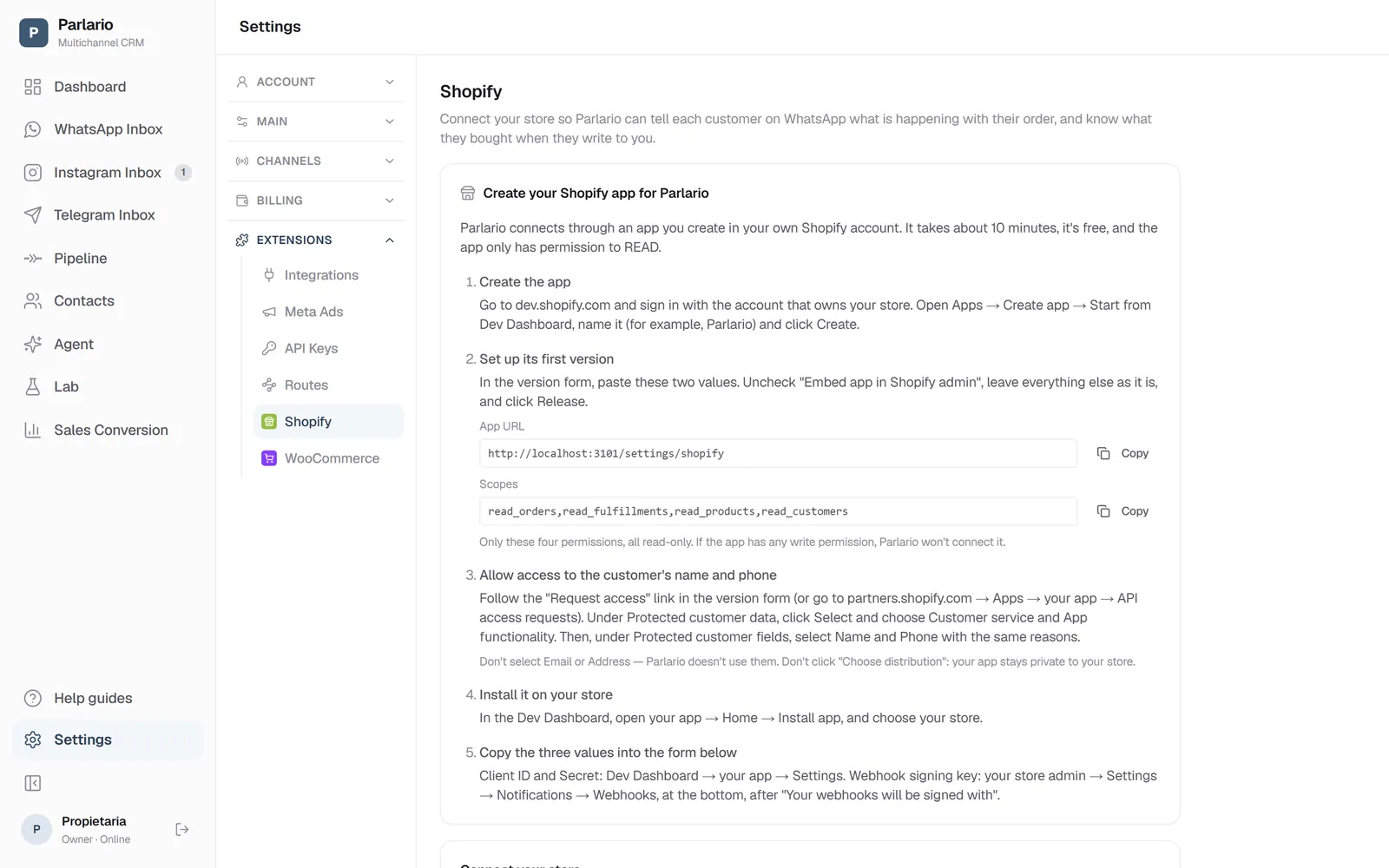
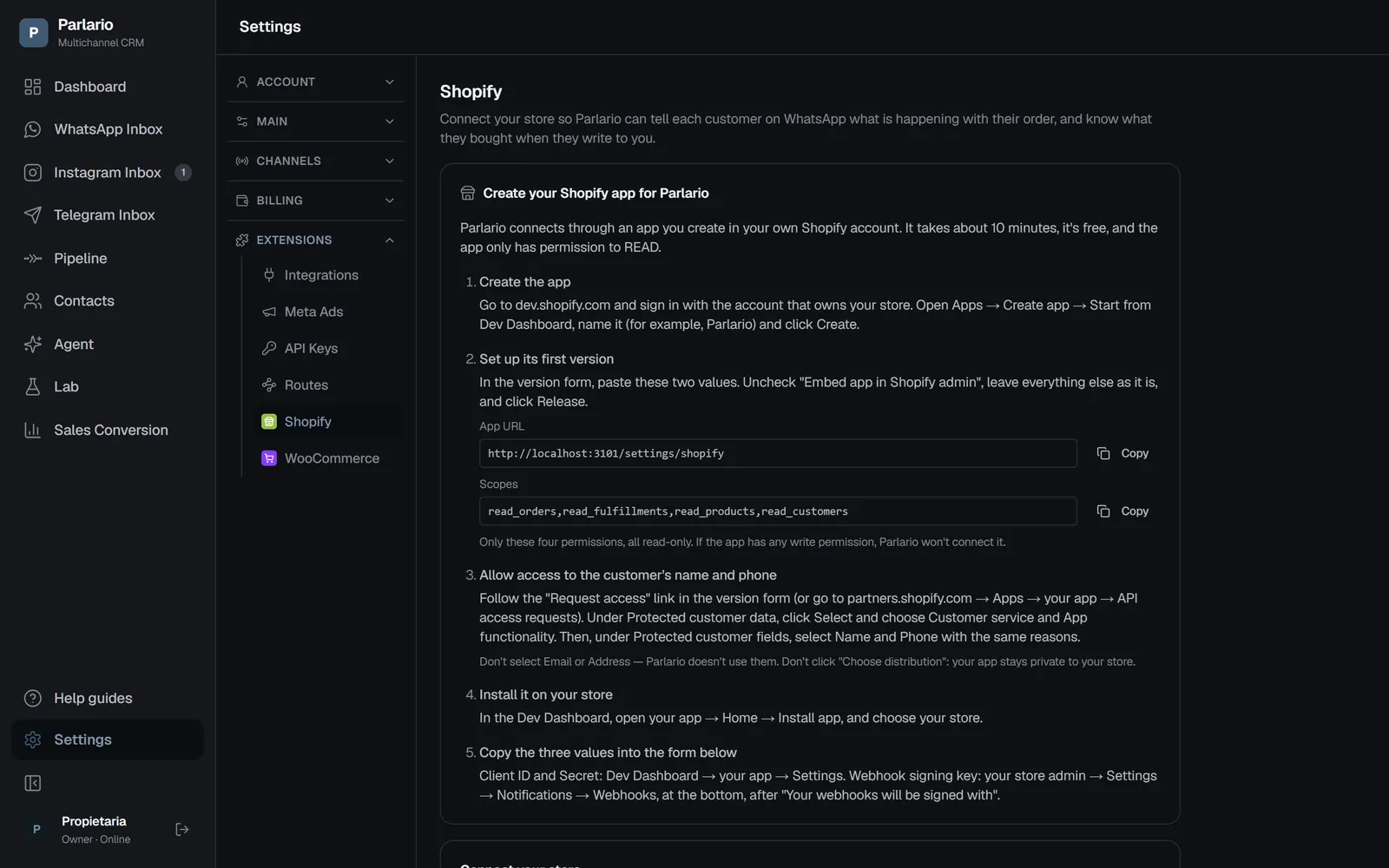
Steps 1 to 9 are done once. Keep Settings → Shopify open in Parlario while you work: it shows the same guide, with every value ready to copy.
Turn on the integration in Parlario
Go to Settings → Extensions → Integrations and turn on the "On" toggle on the Shopify card. Nothing is connected yet — this reveals the Shopify tab under Extensions, where the rest happens.
Open that tab. You'll see a step-by-step guide and a form with four fields. Leave it open.
Create the app
Go to dev.shopify.com and sign in with the account that owns your store. If you manage more than one organization, choose the one where your store appears.
- In the left menu, click Apps.
- Click Create app (top right).
- Choose Start from Dev Dashboard — not the Shopify CLI option.
- Give it a name you'll recognize, for example
Parlario, and click Create.
The app and the store must belong to the same Shopify account. If they don't, Shopify won't give Parlario access and step 8 tells you so.
Set up its first version
Shopify opens the Create version form. Fill in only these fields:
- App URL: copy it from Parlario (Settings → Shopify, step 2 of the guide). It's where Shopify's "open app" button takes you:
https://app.parlario.co/settings/shopify - Embed app in Shopify admin: uncheck it — it comes checked. Parlario doesn't open inside Shopify.
- Webhooks API version: leave the one it suggests.
- Scopes: paste exactly
read_orders,read_fulfillments,read_products,read_customers - Optional scopes, Use legacy install flow, Allowed redirection URL(s), POS and App proxy: leave them empty or unchecked.
Click Release. The version appears as Active.
You won't find anywhere in this form to set up webhooks — that's normal. You create them in your store admin in step 9.
- App URL: copy it from Parlario (Settings → Shopify, step 2 of the guide). It's where Shopify's "open app" button takes you:
Allow access to the customer's name and phone
Shopify protects your customers' personal data, and your app has to ask for it before it can read orders. Without the phone number there is nobody to message.
- Go to partners.shopify.com → Apps → your app → API access requests. (The Request access link in the version form takes you to the same place.)
- Under Protected customer data access, click Request access.
- Next to Protected customer data, click Select. Choose the reasons Customer service and App functionality, and save.
- Under Protected customer fields, click Select next to Name, choose the same two reasons, and save. Do the same for Phone.
- Leave Email and Address alone: Parlario doesn't use them.
The request stays as a Draft, and that's correct — there's nothing to submit, because your app isn't published anywhere.
Don't click "Choose distribution". You don't need it, and Shopify doesn't let you undo that choice.
Install the app on your store
- Back in dev.shopify.com, open your app and go to Home.
- Scroll down and click Install app.
- Choose your store and click Install.
Shopify then opens the App URL: Parlario's Shopify screen. If you weren't signed in to Parlario you'll see the login page first — sign in and go to Settings → Shopify.
To check it worked: in your store admin, Settings → Apps lists your app as installed.
Copy the Client ID and the Client secret
In dev.shopify.com → your app → Settings, under Credentials:
- Client ID: click the copy button next to it.
- Secret: click the copy button next to it. You don't need to reveal it with the eye icon.
Never click "Rotate" unless you mean to: it replaces the secret and the one Parlario has stops working until you update it (see "If something changes later" below).
Copy your store's webhook signing key
In your store admin (not the Dev Dashboard): Settings → Notifications → Webhooks. At the bottom of that page it says "Your webhooks will be signed with", followed by a long key. Copy that key.
Your store uses it to sign every notification it sends. Parlario checks that signature on each one, so nobody else can send it fake orders in your name.
Paste the values and connect
In Parlario, Settings → Shopify, fill in the form:
- Your store domain: the one ending in
.myshopify.com. You can also paste the address of your Shopify admin. - Client ID and Client secret, from step 6.
- Webhook signing key, from step 7.
Click "Check and connect". Before saving anything, Parlario checks with Shopify that the credentials open your store, that the app has exactly the four read permissions and no write permission, and that it can read an order with the customer's name and phone. If something is missing, the message tells you which step to go back to (see the box "If the connection fails" below).
The secret and the key are stored encrypted and never shown again — not even to you.
If your store has no orders yet, Parlario connects anyway and tells you it couldn't confirm the phone number: place a test order when you can.
Settings → Shopify - Your store domain: the one ending in
Create the two webhooks in your store
Once connected, the Shopify screen in Parlario shows a "Last step" card with a URL that is unique to your account. In your store admin, Settings → Notifications → Webhooks → Create webhook, create two webhooks:
- First: Event Order payment · Format JSON · URL: the one Parlario shows · Webhook API version 2026-07.
- Second: Event Fulfillment creation · the same format, URL and version.
Watch the version: Shopify suggests
unstableby default. Change it to 2026-07.To test them: next to each webhook, Shopify offers Send test notification. Send one, go back to Parlario and click "Check again" — you should see "Last notification received" with the time. A test notification doesn't message anyone: it has no real customer.
Keep that URL private. It's what tells Parlario the notification is yours.
Get your templates approved
These messages reach the customer hours or days after they last wrote to you, so WhatsApp requires them to be approved templates — free text isn't allowed that late. Create them in Settings → Templates and wait for Meta to approve them. Only approved templates appear in the next step.
A Parlario template carries exactly one variable, written
{{1}}. So write the sentence around the single piece of information that matters:- Your order {{1}} is confirmed. Thanks for shopping with us!
- Your order is on its way. Tracking: {{1}}. Thanks for shopping with us!
The variable cannot open or close the message. WhatsApp rejects a body that starts or ends with
{{1}}— leave text on both sides of it.Choose the message for each event
In the Shopify tab, under "Automatic messages", you'll find the two events. For each one, pick the template and then pick what fills its
{{1}}:- When an order is paid: order number, order total, or customer name.
- When the order ships: tracking number, order number, or customer name.
Then turn on "Send this message" and click Save. Both events start off: a connected store sends nothing until you turn an event on, on purpose.
Add the tracking number when you fulfil the order
Type the tracking number into the fulfilment dialog in Shopify, before you confirm it. Shopify announces the shipment the moment you confirm, and if the tracking number isn't there yet, Parlario skips the message rather than send one with an empty space where the number should be.
If your workflow adds tracking later, map the shipping event to the order number instead, and the message goes out reliably.
See what they bought, without leaving the Inbox
Open any conversation and look at the Details panel on the right: a Purchases section lists that customer's orders — order number, total, what they bought, and the tracking number once it ships.
It appears only for contacts who have actually ordered, and it updates on its own. It shows the last 90 days: Parlario deletes the content of each Shopify notification 90 days after it arrives.
Your Meta Ads ROAS gets the real amount
If you also report conversions to Meta (Settings → Meta Ads), every paid order now sends Meta how much was sold, not just that a sale happened. There's nothing new to configure.
With a store connected, the order becomes the source of the sale, so dragging a card to "Won" in the Pipeline stops reporting a purchase — otherwise the same sale would be counted twice. Without a store connected, nothing changes.
With several numbers
If you connected more than one WhatsApp number, each notification goes out from the number the customer last talked to you on. There's nothing to configure, and with a single number it's exactly what it always was. The chosen template has to exist in that number's WhatsApp Business account. The full details are in Several numbers and accounts.
If the connection fails
- "Shopify didn't accept those credentials" — the Client ID or secret is wrong, the app isn't installed on this store (step 5), or the app was created with a different Shopify account than the one that owns the store (step 2)
- "Your app is missing these permissions" — create a new version with the four scopes from step 3, click Release, and approve the update in your store admin
- "Your app has write permissions" — Parlario only connects read-only apps. Create a new version with only the four scopes from step 3
- "Your app can't read orders yet" — step 4 is missing: request Protected customer data
- "…not these customer fields" — in step 4, select Name and Phone under Protected customer fields
- "We couldn't find that store" — check the domain: it ends in
.myshopify.com - "No notifications received yet" after a test — check the webhook URL and version (step 9) and that you copied the signing key from step 7, not the Client secret
If something changes later
You rotated the app's secret, or copied a value wrong: in Settings → Shopify, click "Update credentials" and paste the new values. Your webhook URL stays the same, so you don't have to touch the webhooks.
You uninstalled the app from your store: the Shopify screen warns that Parlario can't access your store. Reinstall it (step 5) or disconnect.
Meta paused or disabled a template: if customers block or report it, Meta marks it Paused (for a few hours) or, if it keeps happening, disables it. In the meantime, messages for the events that use it aren't sent. Settings → Templates shows why and when it comes back; if it was disabled, create another one and pick it for the event. See When a template stops delivering.
To disconnect: use "Disconnect" in the Shopify tab, then delete the two webhooks in your store admin (Settings → Notifications → Webhooks) — they belong to your store and keep sending until you remove them. Your conversations, and everything already sent, stay exactly as they are. You can also uninstall the app from your store.
Each order and each shipment produces one message, even if Shopify announces the same event twice. Every customer you message counts towards your Monthly Active Contacts allowance, so a high-volume store can use it up quickly — check your plan before turning these on.
Recap
- Business and Advanced plans; connected by the owner or by whoever has implementation access
- You create a small private app in your own Shopify account, with four read-only permissions — Parlario refuses any app that can write
- Allow the customer's Name and Phone in Protected customer data; don't choose a distribution
- Paste four values in Parlario: store domain, Client ID, Client secret and the webhook signing key
- Create two webhooks in your store admin — Order payment and Fulfillment creation, JSON, version 2026-07
- Each message is an approved WhatsApp template with one variable, and nothing is sent until you turn each event on
- Type the tracking number into the fulfilment dialog BEFORE confirming it
To unmark the lesson, select the button again.
Questions? Visit our support portal: support.parlario.co