

Your account: profile, security and appearance
What you'll learn
- What in your account is yours and what belongs to the organization
- How to change your password and end open sessions
- Turning on two-step verification and saving your backup codes
These three screens are yours, not the organization's: changing them affects neither your teammates nor the business. They're grouped in Settings under Account, and the whole team sees them — not only the owner.
Settings → Your profile
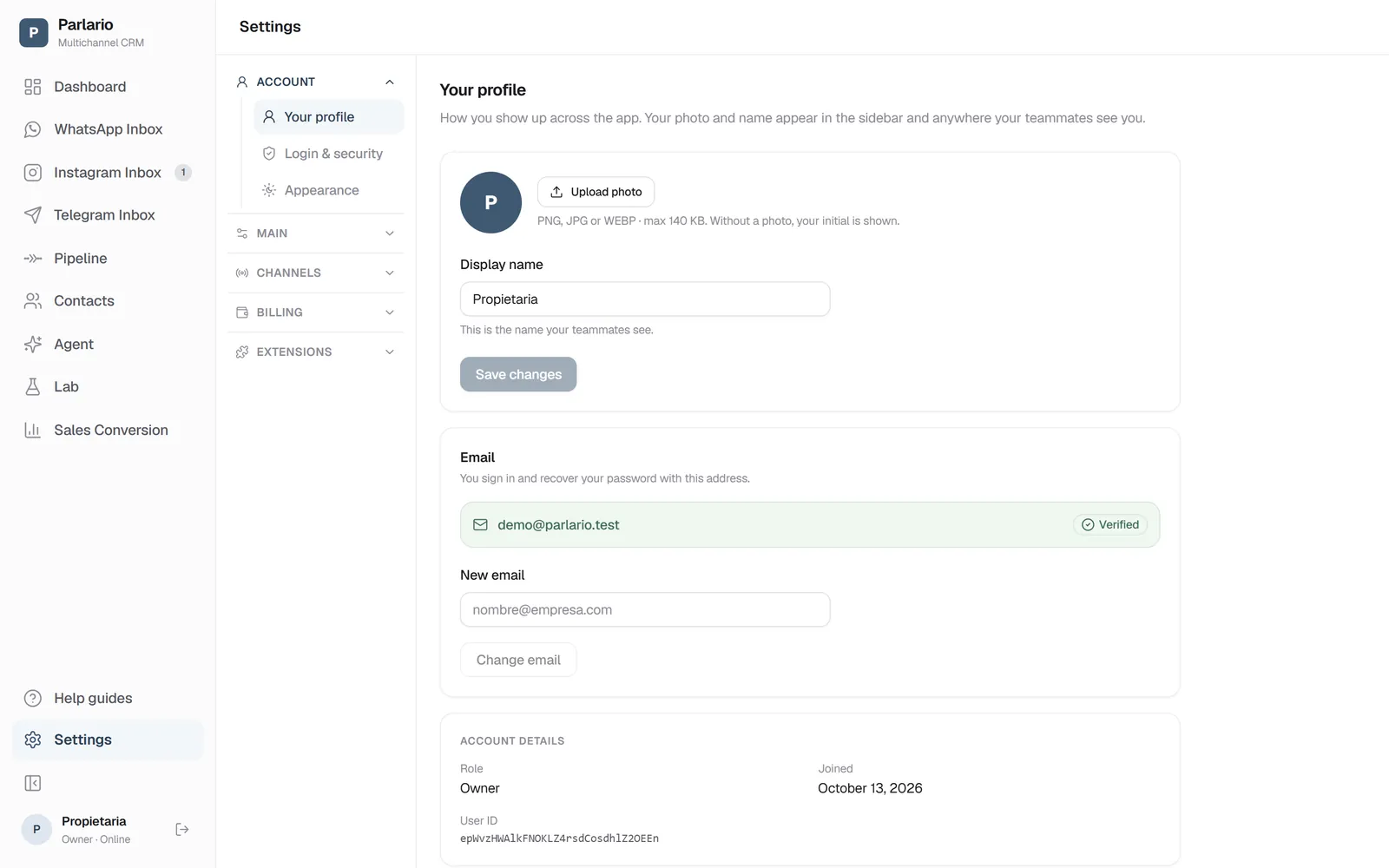
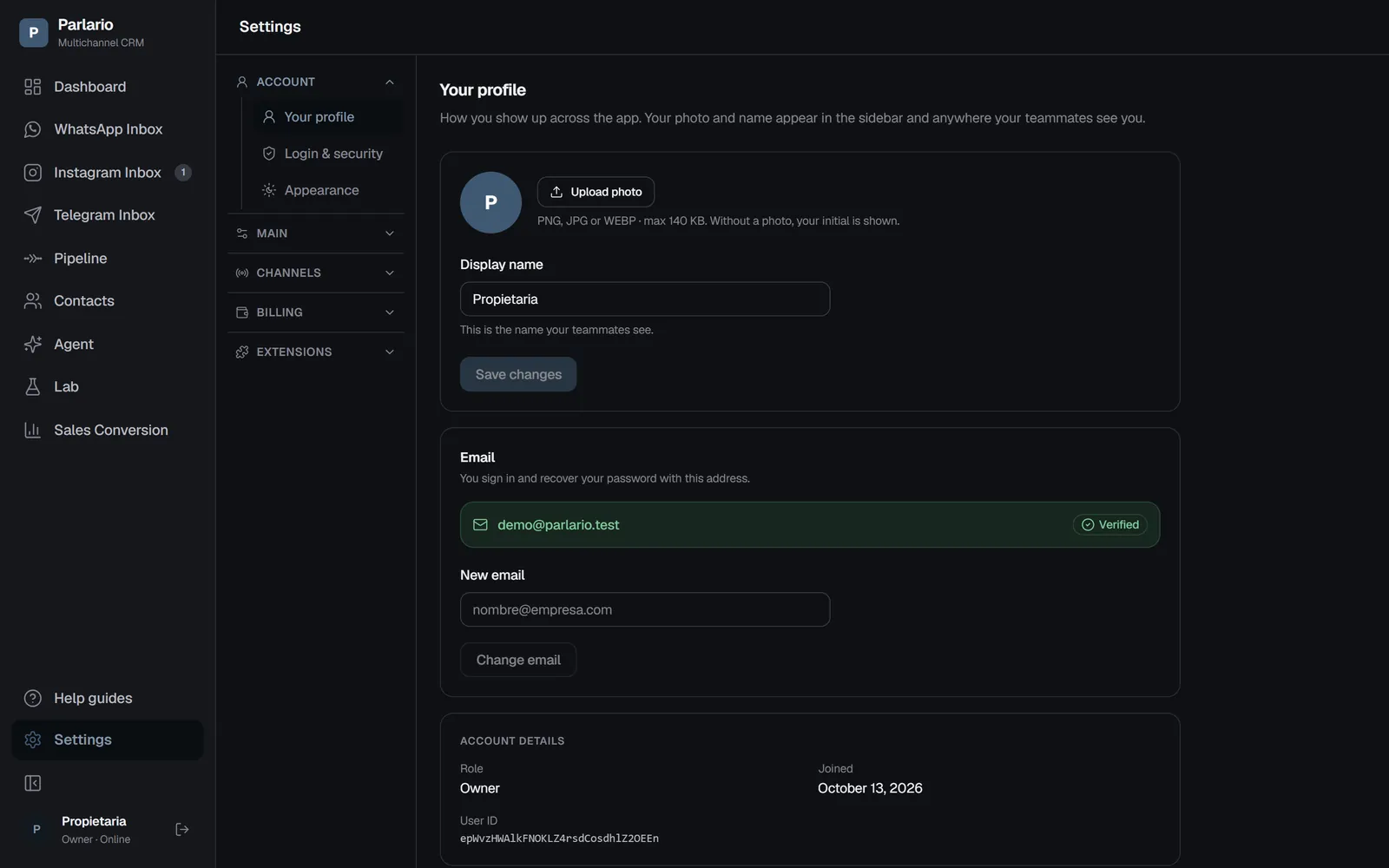
Upload a photo (PNG, JPG or WEBP, up to 140 KB) and choose your display name: it's how teammates see you inside Parlario. With no photo, your initial is shown instead.
Settings → Your profile The details you can't change
The same screen shows your role (owner or member), how long you've been a member, and your user ID. The role is changed by the owner in Settings → Team, not by you.
Your email
You sign in with that address and recover your password through it, so it's worth using one you actually check.
Settings → Login and security
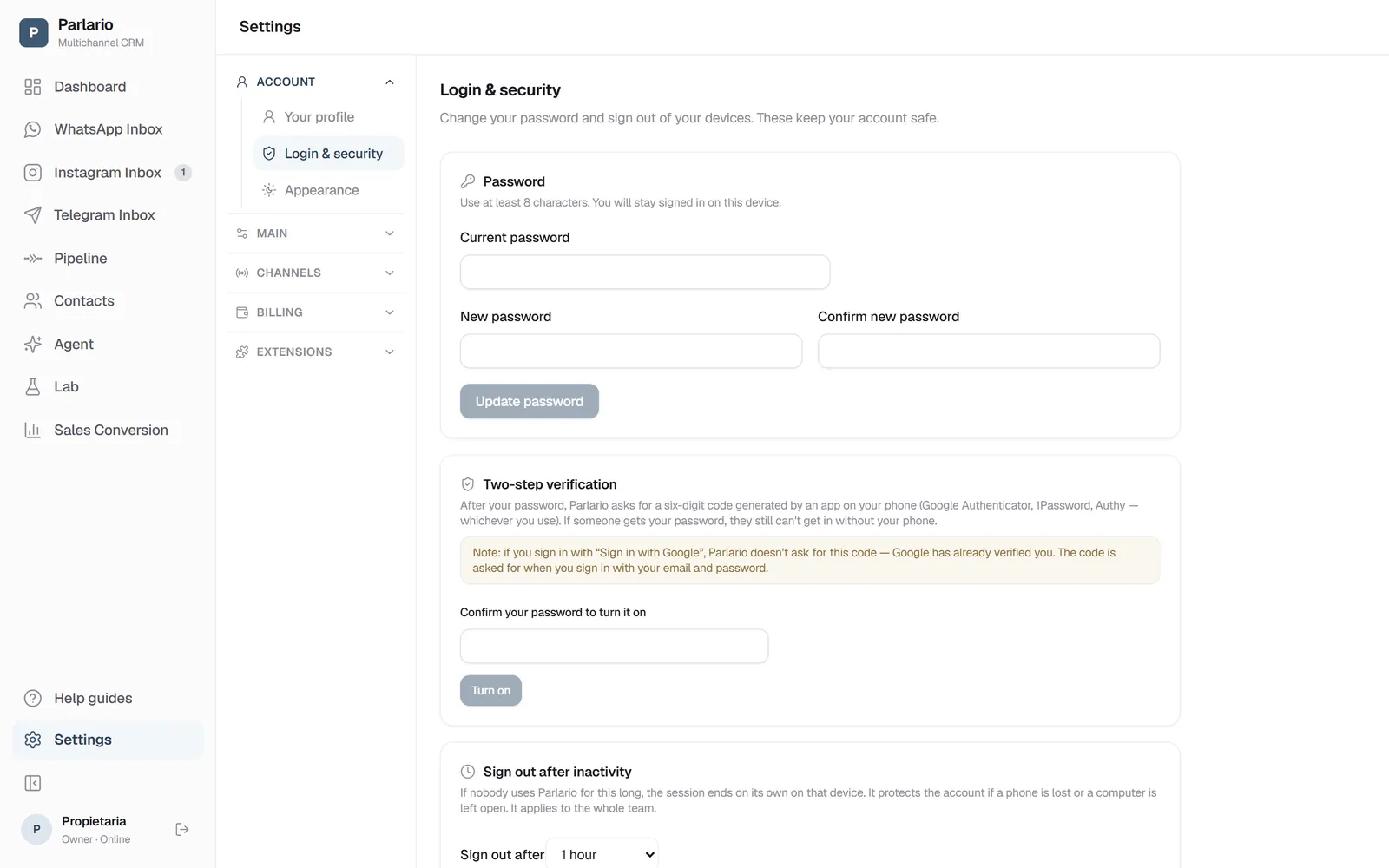
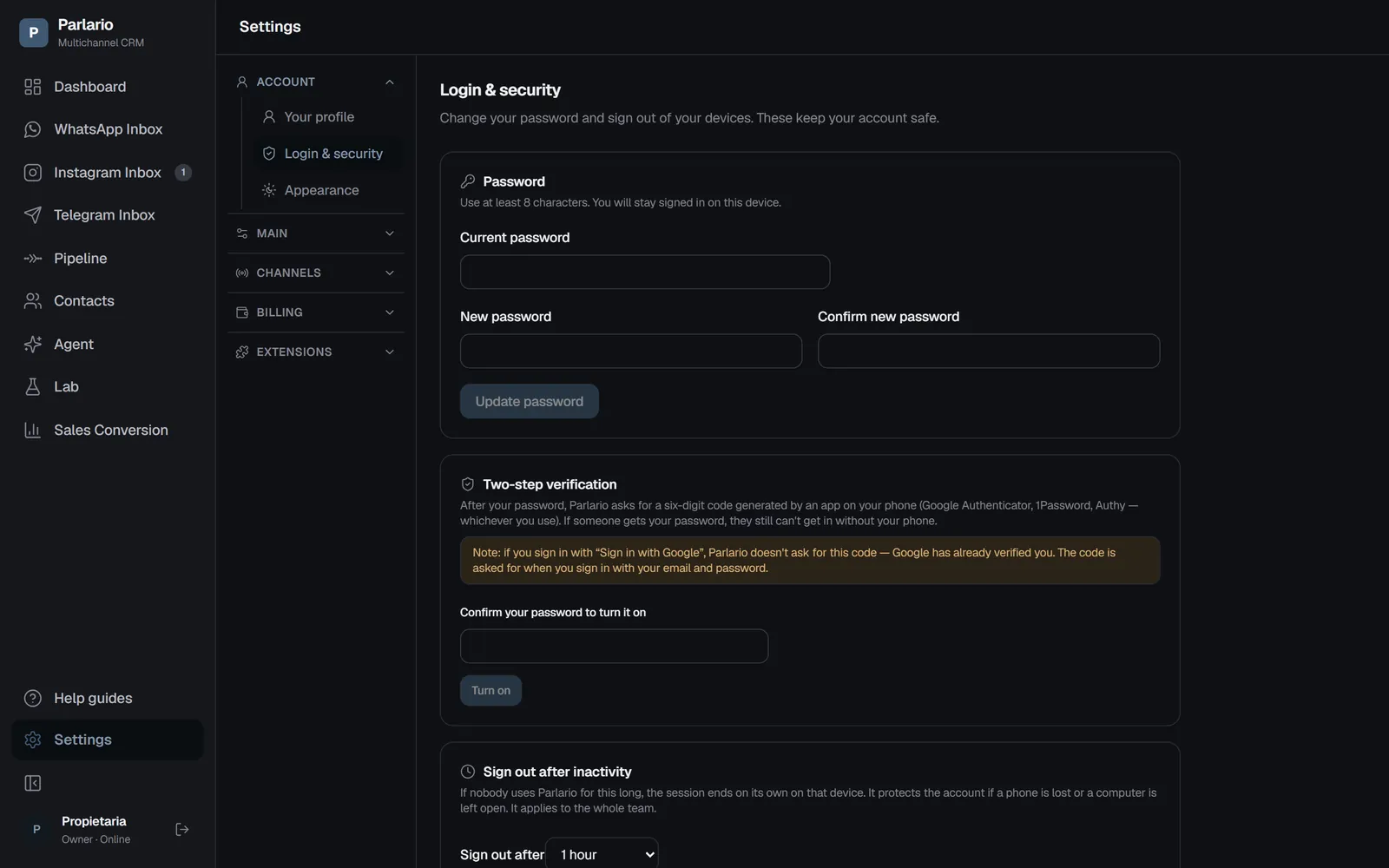
Changing your password asks for the current one — so nobody sitting at your open screen can change it without knowing it. You stay signed in on this device.
Settings → Login and security Two-step verification
On the same screen. After your password, Parlario asks for a six-digit code generated by an app on your phone — Google Authenticator, 1Password, Authy, whichever you use. If someone gets your password, they still can't get in without your phone.
Confirm your password, scan the QR code with your app, and enter the code it shows you. That last step isn't a formality: it's how we check your app was set up correctly before the verification goes live. If the scan had gone wrong, far better to find out then than the next time you try to sign in.
Save your backup codes. Ten appear when you finish, and they're shown once. Copy them somewhere safe: they're your safety net for the day you lose your phone, replace it, or wipe the app. Each one gets you in once.
If you sign in with Google, you aren't asked for the code
Google has already verified you, so Parlario doesn't ask for a second code on top. Worth knowing: if your account has verification on and also has Google linked, signing in with Google skips the Parlario code. It isn't a hole — that route still needs your Google account, with its own protection — but it isn't what most people assume.
If you get locked out: use a backup code from the code screen itself. If you don't have those either, your account owner can reset your verification from Settings → Team. And if the person locked out is the owner: need a hand? Create an account on our support portal at support.parlario.co and submit a ticket. Registration is easy, and you'll only need to do it once!
The code depends on your phone's clock. If it has drifted, codes will come out invalid even when you type them correctly: turn on automatic time and try again.
Sign out on all devices
On the same screen. Use it if you lost your phone or signed in from a borrowed computer: it ends every session and you'll have to sign in again.
Settings → Appearance
Light, dark or system mode (following whatever your computer or phone is set to). It applies instantly and affects only you.
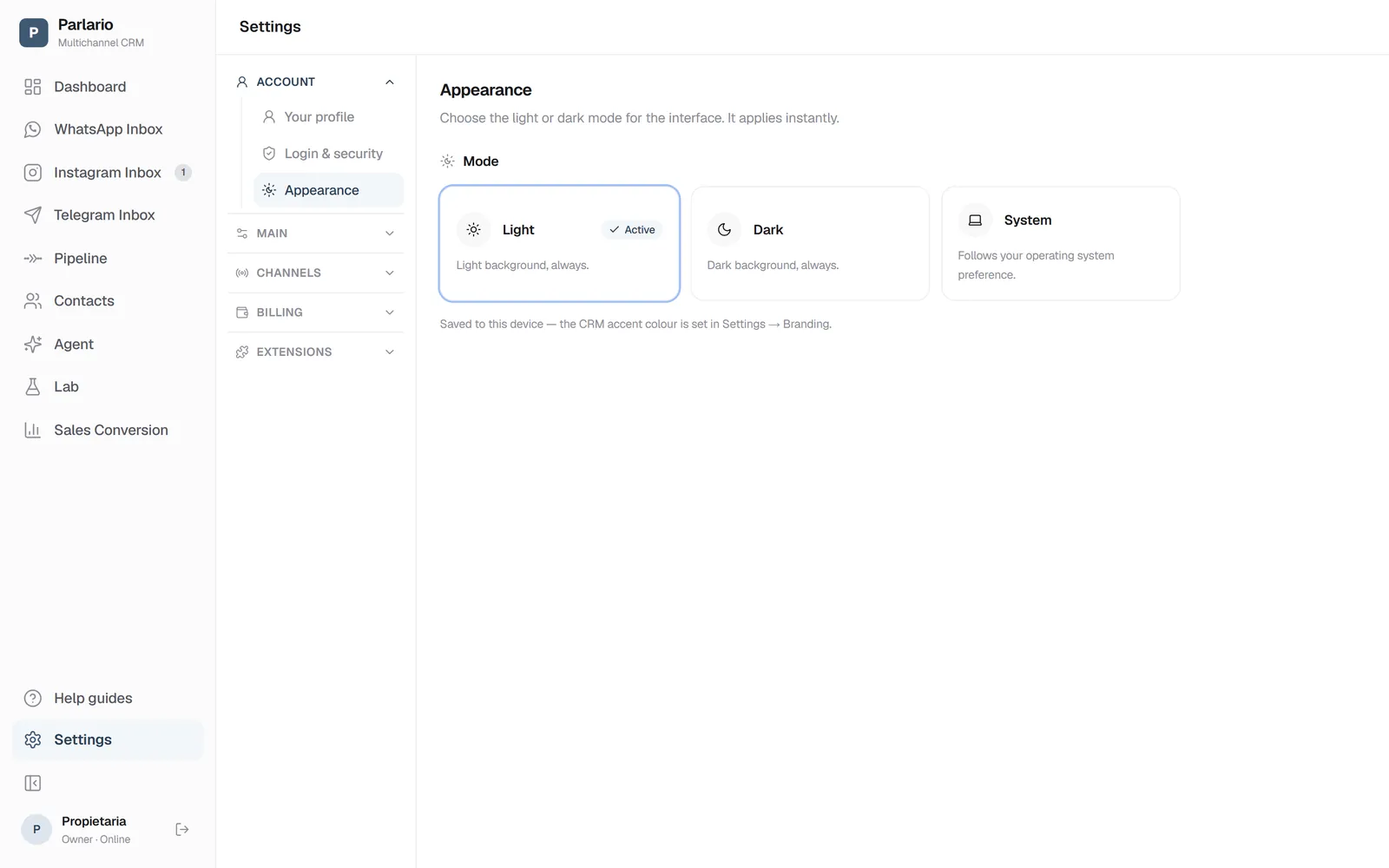
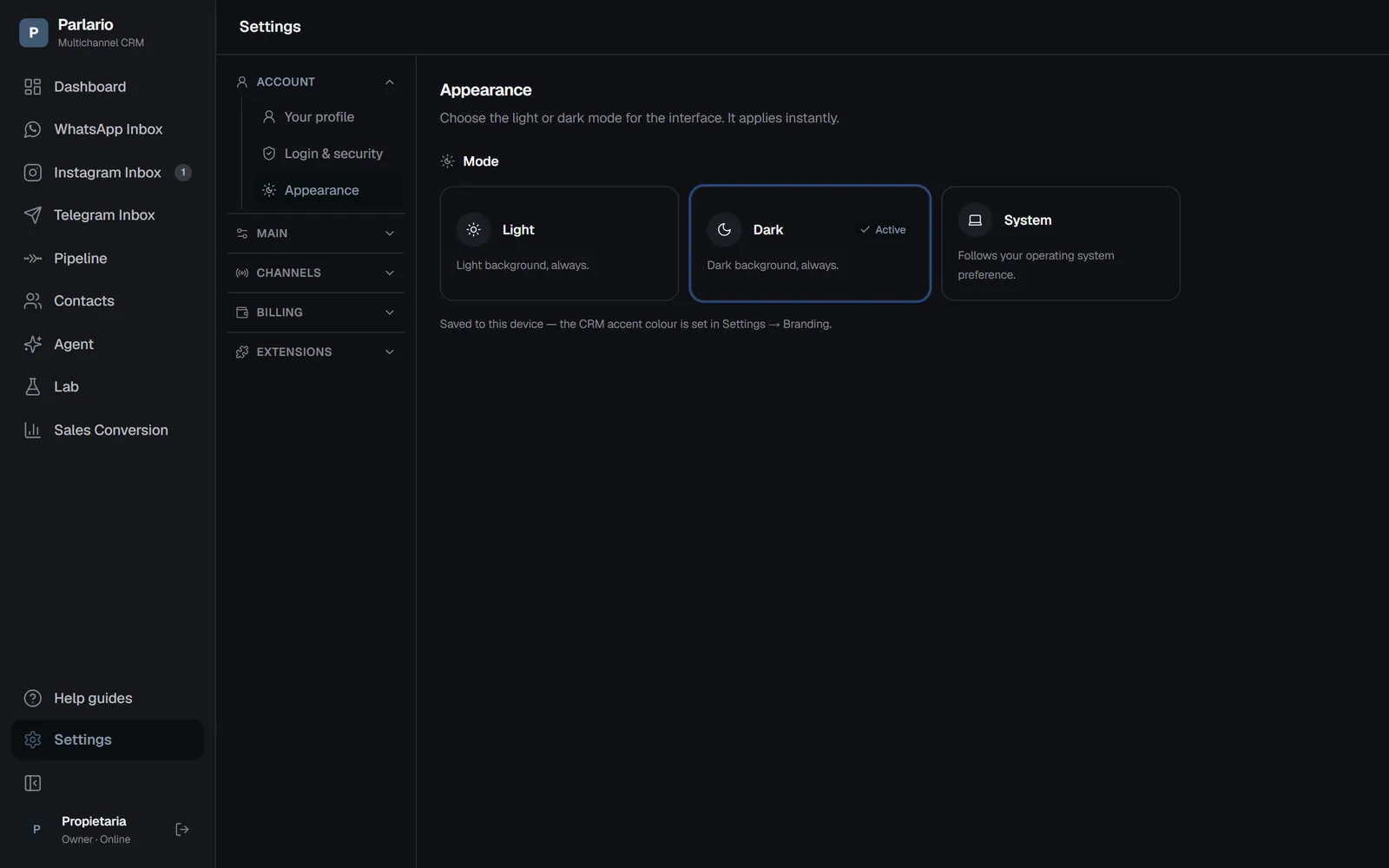
Settings → Appearance
Recap
- Profile, security and appearance are personal: they don't affect the team
- Your role is changed by the owner in Team, not by you
- Signing out everywhere is the right move if you lose a device
To unmark the lesson, select the button again.
Questions? Visit our support portal: support.parlario.co